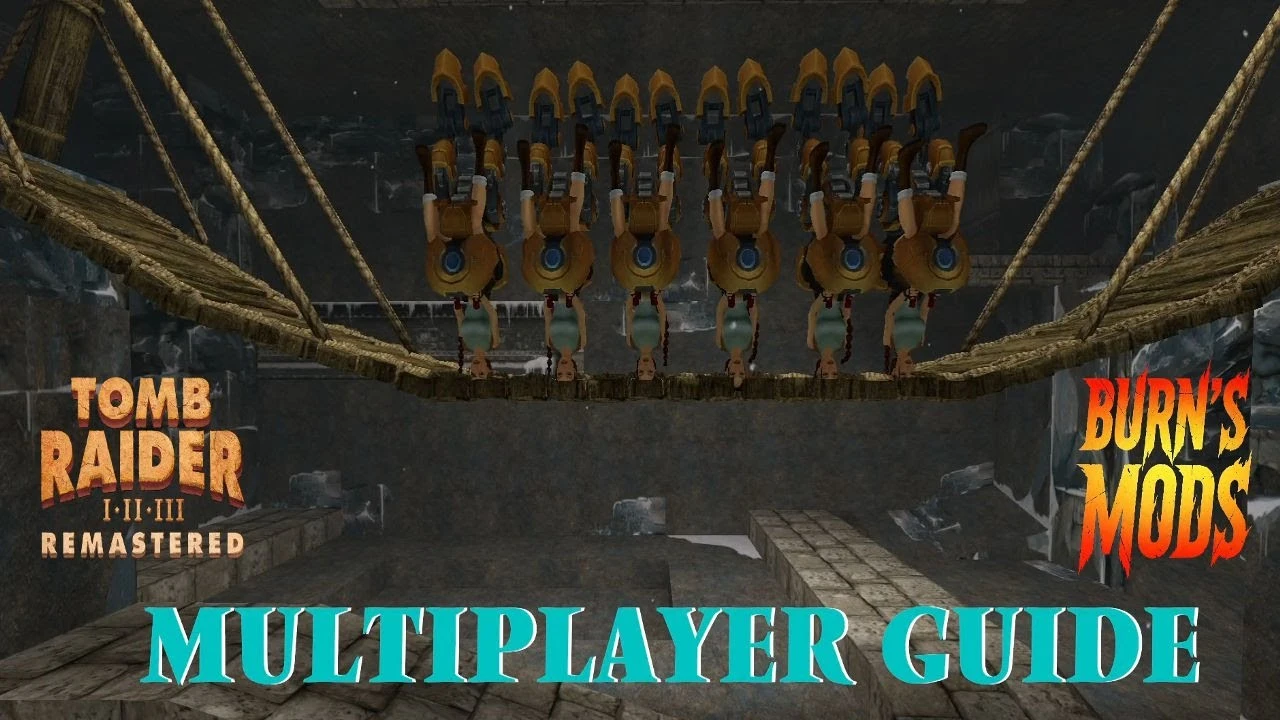
Burn's Multiplayer Mod Setup Guide by the420beni
A 1-Year Anniversary Guide to Tomb Raider 1-5 Remastered Multiplayer
Hello, my name is Beni. Have you ever wanted to play Tomb Raider with your friends or co-op? Well, Burns, the mod god, has brought it to life with the Tomb Raider 1-5 Multiplayer Mod.
This guide will walk you through how to set up the mod, explore its features, touch on the mod's history, and look ahead to what's coming in 2026. This video was created to celebrate the 1-year anniversary of Burns Mod—I hope you enjoy!
If you need additional tech support, please join the Discord server.
Requirements
Before getting started, there are a couple of things to consider:
- Steam Copy: You must have one of the latest two versions of the game
- GOG Copy: You must have the latest version
The mod is only compatible with these versions. Make sure your game is up to date before proceeding.
Downloading the Mod
There are a couple of places to download the mod:
- From the Website: Visit the Downloads page where you'll find download buttons and a brief breakdown of how to install the mod
- From Nexus Mods: The mod is also available on NexusMods for those who prefer that platform
When you click the download link, you'll be taken to a page with a disclaimer about the Discord server supporting the multiplayer infrastructure. You're able to make a contribution to help keep the server running—it's greatly appreciated!
The download page also shows mod compatibility information, release date, and what's new in the latest version.
Installation
Once the mod is downloaded, it will appear in your downloads folder. Here's how to set it up:
- Keep the .exe on the same drive as your game - This is recommended for best performance. For example, if your game runs from F: drive, move the mod executable to F: drive as well
- Run as Administrator - Right-click the executable and select "Run as administrator"
When the mod launcher opens, it will display a clean interface with all your options.
Configuring Multiplayer
In the launcher, you'll need to make a few selections:
1. Choose Your Game
Select which Tomb Raider game you're playing:
- Tomb Raider 1
- Tomb Raider 2
- Tomb Raider 3
- Tomb Raider 4
- Tomb Raider 5
For Tomb Raider 1-3, select Multiplayer to continue.
2. Enable Multiplayer
Click the Multiplayer toggle to enable online play. There are additional parameters, criteria, and features available, but for a basic multiplayer setup, just toggle multiplayer on.
3. Choose Your Server
You have two options:
- Burns Community Server - Burns' own hosted server, recommended for most players
- Custom Server - If you'd like to host or use your own server
We recommend choosing Burns Community Server.
4. Set Your Display Name
Enter the name you want other players to see.
5. Public or Private Lobby
- Public Lobby: Leave the password field blank to join an open public lobby
- Private Lobby: Set a password and share it with the group or individuals you'd like to play with
6. Launch
Click Launch Mod, then launch your game!
In-Game Features
When the game launches, you'll see "Burns Mod" with the version number displayed at the main menu, along with a list of levels and players currently in those levels.
Text Chat (F8)
Multiplayer includes an in-game text chat. Press F8 to activate it, then type your message to communicate with friends.
Multiplayer Menu (F2 + F4)
All multiplayer features are accessed through the in-game multiplayer menu. Press F2 to cycle through options, then F4 to confirm your selection.
Available options in the multiplayer menu:
- Player Names & Health Bars — Toggle player display (above Lara, hidden, or top left corner). Particularly helpful for PvP battles!
- Teleport to Players — Cycle through players in the level and teleport to them. Great for catching up with friends who've moved ahead.
- Level Skip — Select a level and skip to it. A yellow prompt will confirm which level you're about to skip to. Very useful for quickly skipping levels and making saves.
- PvP Mode — Toggle player vs player combat on/off. Once enabled, players can engage in combat and shoot each other. There's a kill feed in the bottom right corner showing who eliminated who—great for team deathmatch or free-for-all matches!
As demonstrated in the video, you can quite quickly skip through levels together as a group.
Quick Reference: Hotkeys
| Feature | Key(s) | Description |
|---|---|---|
| Text Chat | F8 | Open chat to message other players |
| Multiplayer Menu | F2 | Cycle through multiplayer options |
| Confirm | F4 | Confirm the selected option |
Photo Mode Fun
Tomb Raider Remastered has a built-in photo mode, and let's be honest—most of the fun in multiplayer is in photo mode! You can capture some very funny moments with your friends.
The video showcases snippets from photo mode during multiplayer sessions, featuring hilarious group poses and creative screenshots.
Mod Compatibility
One important thing to note: cosmetic mods work with multiplayer! However, everyone must have the same mod installed.
Compatible Mods Include:
- Outfit Mods - Like the Mecha mount mod shown in the video, creating hilarious scenarios
- Tomb Randomizer - Works alongside Burns Mod for randomized adventures
- Expanded Poses - A great addition for photo mode creativity
- Natlera and other character mods - Big shout out to all the mod creators!
These outfit and cosmetic mods create some truly hilarious situations when playing together.
Supporting the Mod
The multiplayer server costs money to maintain. If you've enjoyed the mod, please consider supporting Burns and the server. Your contributions help keep the servers running so everyone can continue enjoying multiplayer Tomb Raider.
Summary
| Step | Action |
|---|---|
| Check Requirements | Steam (latest 2 versions) or GOG (latest version) |
| Download | Get the mod from Downloads or NexusMods |
| Install | Place .exe on same drive as game, run as admin |
| Configure | Choose game, enable multiplayer, select server |
| Set Lobby | Enter display name, set password for private or leave blank for public |
| Play | Use hotkeys to chat, teleport, PvP, and have fun! |
Need Help?
If you need any more assistance, reach out to the Discord server. The community is always happy to help new players get set up!
Thank you for reading, and I hope this guide has helped. Can't wait to see you in the next multiplayer session!
— Beni (the420beni)